Streamline Your CI/CD Pipeline: Jenkins Master-Agent Configuration
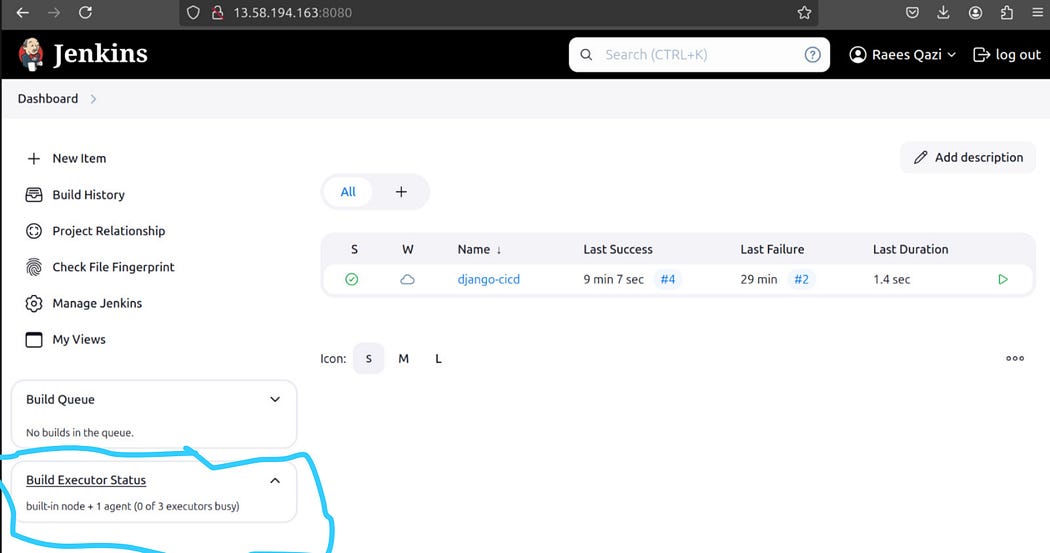
When working with Jenkins, understanding the Master and Agent (Slave) architecture is essential for setting up distributed builds and optimizing your CI/CD pipelines. Here, we’ll break this down step-by-step, making it easy to grasp the concepts and practical setup.
Master Node (Jenkins Master)
The Master node is where Jenkins itself runs. It serves as the brain of your CI/CD system. Its responsibilities include:
- Creating jobs (tasks or pipelines).
- Assigning jobs to agents for execution.
- Monitoring and orchestrating builds.
In the Master node, you:
- Define and configure pipelines.
- Assign jobs to agents using labels.
- Establish a connection to agents (slaves) using SSH keys.
To establish this connection:
- Generate an SSH key pair on the master node using the
ssh-keygencommand. - Copy the public key from the master and paste it into the agent’s
authorized_keysfile. - Use the private key on the master to authenticate and connect to the agent securely.
Agent Node (Jenkins Slave)
The Agent node (commonly referred to as a slave) is the machine that executes the jobs assigned by the Master node. Unlike the master, the agent does not require Jenkins installation. Instead:
- Install Java on the agent machine since Jenkins requires Java to run job-related tasks.
- Set up the agent to communicate with the master using SSH.
Summary:
- The Master creates and coordinates jobs.
- The Agent executes the jobs assigned by the master.
Practical Steps to Set Up Master-Agent Architecture
Step 1: Generate SSH Keys on the Master
- Run
ssh-keygento generate SSH keys:
ssh-keygen
Navigate to the .ssh directory:
cd ~/.ssh
2. Copy the public key:
cat id_rsa.pub
Paste the public key into the agent’s authorized_keys file:
echo "<public_key>" >> ~/.ssh/authorized_keys
Step 2: Install Java on the Agent Node
Ensure Java is installed on the agent:
sudo apt update
sudo apt install fontconfig openjdk-17-jre
Step 3: Add the Agent in Jenkins
- Go to Manage Jenkins > Manage Nodes
- Click New Node to add an agent.
Fill in the following details:
- Node Name: Example:
raees007(unique name for the agent). - Description: Provide details like “Node for Dev Environment.”
- Number of Executors: Specify the number of jobs the agent can run in parallel (e.g., 2).
- Remote Root Directory: Example:
/home/ubuntu/apps(path on the agent machine). - Labels: Example:
dev(used to group and target agents). - Usage: Choose “Use this node as much as possible.”
3. Launch Method: Select Launch agent via SSH and provide the following details:
- Host: IP address of the agent.
- Credentials: Add new credentials:
- Domain: Global
- Kind: SSH Username with Private Key
- ID: Example:
node-raees-ssh-key - Description: Example: “Key for Node raees007”
- Username:
ubuntu(or the agent machine’s username). - Private Key: Paste the private key generated on the master node.
Choose “Non-verifying verification strategy” for Host Key Verification.
Save the configuration and test the connection.
Building a Pipeline with Agents
Once the agent setup is complete, you can assign pipelines to it using labels. For instance, if your agent has the label dev, the pipeline configuration would look like this:
pipeline {
    agent {
        node {
            label "dev"
        }
    }
    stages {
        stage("Code") {
            steps {
                echo "Code has been cloned."
            }
        }
        stage("Build") {
            steps {
                echo "Docker image has been built."
            }
        }
        stage("Test") {
            steps {
                echo "Tests were executed during the Docker build process."
            }
        }
        stage("Deploy") {
            steps {
                echo "The app is running using the Docker run command."
            }
        }
    }
}
Youtube Link: https://www.youtube.com/playlist?list=PLDw5C8AZ-iZaJjgn9d2vBEjmcKfXqpov2
Key Takeaways
- Master handles orchestration; Agent handles execution.
- SSH keys ensure secure communication between Master and Agent.
- Labels help assign jobs efficiently to the right agents.
By following these steps, you’ll have a robust Master-Agent setup in Jenkins, enabling distributed builds and efficient resource utilization. Stay connected for more DevOps insights!


Comments
Post a Comment