Mastering Docker: A Beginner’s Guide to ENTRYPOINT, CMD, and Docker Scout for Security Scanning
Understanding ENTRYPOINT vs CMD in Docker
When working with Docker, it’s crucial to understand the difference between ENTRYPOINT and CMD in a Dockerfile:
- ENTRYPOINT: This is used to specify a fixed command that always runs when the container starts. The arguments defined in
ENTRYPOINTcannot be easily overridden at runtime. - CMD: This is more flexible. It provides default arguments for
ENTRYPOINTor serves as the main command ifENTRYPOINTis not specified. You can overrideCMDat runtime by passing different arguments when you start the container.
Introduction to Docker Scout
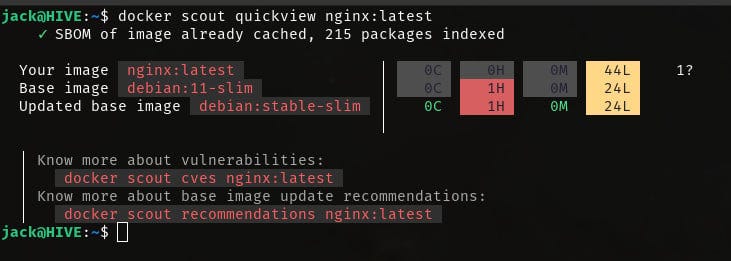
Now, let’s talk about Docker Scout, a tool designed to scan Docker images for security issues and vulnerabilities. It generates a detailed report highlighting any potential risks.
Installing Docker Scout
Docker Scout is not pre-installed, so you’ll need to install it manually. Here’s how:
- Create a directory for Docker Scout:
mkdir -p $HOME/.docker/scout
2. Download the installation script:
curl -fsSL https://raw.githubusercontent.com/docker/scout-cli/main/install.sh -o install-scout.sh
3. Run the installation script:
sh install-scout.sh
After running these commands, Docker Scout will be installed.
Logging into Docker Hub
To use Docker Scout, you need to log in to Docker Hub:
- Run the login command:
docker login
2. Enter your Docker Hub credentials:
- Username:
brillertechnologies - Password: Use your personal access token (PAT).
Once logged in, you can start using Docker Scout.
Scanning Images with Docker Scout
To scan an image for vulnerabilities, use the following command:
docker scout cves mysql:latestThis command will scan the mysql:latest image and list any Common Vulnerabilities and Exposures (CVEs) found.
Understanding Docker Hub
Docker Hub is a platform similar to GitHub but for Docker images. You can:
- Create an account (using your GitHub or Google account if you prefer).
- Push and pull Docker images to and from the platform.
Example: Working with Docker Hub
Let’s say you have a mysql:latest image, and you want to push it to your repository:
- Tag the image:
docker image tag mysql:latest brillertechnologies/mysql:latest
2. Push the image:
docker push brillertechnologies/mysql:latest
3. Pull the image:
docker pull brillertechnologies/mysql:latest
By following these steps, you can efficiently manage your Docker images on Docker Hub.
YouTube Link: https://youtube.com/@raeesq.?si=v_QK6Q2XXMf9mKep
Feel free to share this guide and stay connected!


Comments
Post a Comment