Effortless CI/CD: Pushing Docker Images with Jenkins
How to Push a Docker Image to Docker Hub Using Jenkins
Pushing a Docker image to Docker Hub might seem tricky, but it’s absolutely doable. Here’s a step-by-step guide to help you complete this task without directly sharing your Docker Hub username and password.
Step 1: Add Credentials in Jenkins
- Log in to Jenkins.
- Go to Manage Jenkins > Security > Credentials.
- Under Stores scoped to Jenkins, click on the Global domain.
- Click on Global credentials and then click Add Credentials.
- Fill out the form:
- Kind: Username and password
- Scope: Global (Jenkins, nodes, etc.)
- Username: Your Docker Hub username (e.g.,
brillertechnologies) - Password: Your Docker Hub Personal Access Token (PAT)
- ID: Choose a name to identify the credentials (e.g.,
dockerCreds). This ID will be used in the pipeline. - Description: Add a description for your reference.
- Click Create. Your Docker Hub credentials are now securely stored in Jenkins.
Step 2: Write and Execute a Jenkins Pipeline
Here’s a Jenkins pipeline script to build, test, and push a Docker image to Docker Hub:
pipeline {
    agent {
        node {
            label "dev"
        }
    }
    stages {
        stage("Clone Code") {
            steps {
                git url: 'https://github.com/LondheShubham153/node-todo-cicd', branch: 'master'
                echo "Code has been cloned."
            }
        }
        stage("Build & Test") {
            steps {
                sh 'docker build . -t nodes-app:latest'
                echo "Docker image has been built and tested."
            }
        }
        stage("Push to DockerHub") {
            steps {
                echo "Pushing the image to Docker Hub..."
                withCredentials([usernamePassword(credentialsId: 'dockerCreds', usernameVariable: 'dockerHubUser', passwordVariable: 'dockerHubPass')]) {
                    sh 'docker image tag nodes-app:latest ${dockerHubUser}/nodes-app:latest'
                    sh 'docker login -u ${dockerHubUser} -p ${dockerHubPass}'
                    sh 'docker push ${dockerHubUser}/nodes-app:latest'
                }
            }
        }
        stage("Deploy") {
            steps {
                sh 'docker run -d -p 8000:8000 --name nodes-app nodes-app:latest'
                echo "Application has been deployed."
            }
        }
    }
}
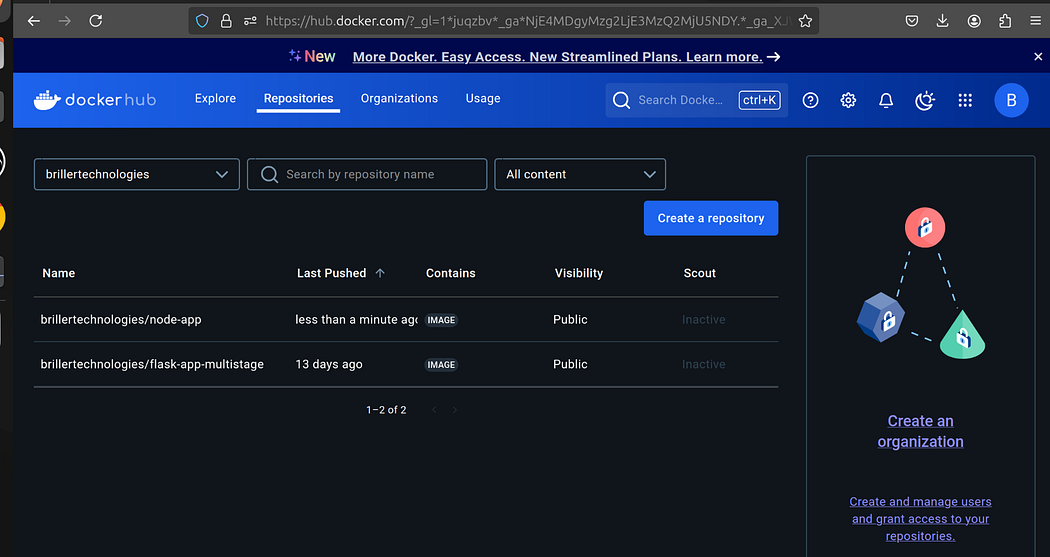
After running this pipeline, your Docker image will be successfully pushed to your Docker Hub repository, and the application will be deployed locally. 🎉

Bonus: Setting Up a Webhook for Continuous Deployment
Webhooks allow Jenkins to automatically trigger a pipeline whenever there’s a change in your GitHub repository. Here’s how to set it up:
- Go to your GitHub repository (e.g.,
node-todo-cicd). - Click on Settings > Webhooks.
- Click Add webhook.
- Fill in the following:
- Payload URL: Enter the URL of your Jenkins server (e.g.,
http://192.168.2.3:8080/github-webhook/). - Content Type: Choose
application/json. - Event: Select Just the push event.
- Click Save.
Now, whenever you push code to GitHub, the webhook will trigger Jenkins to run your pipeline automatically. This is an example of Continuous Deployment (CD).
YouTube Link: https://www.youtube.com/playlist?list=PLDw5C8AZ-iZaJjgn9d2vBEjmcKfXqpov2
Conclusion:
With these steps, you can push your Docker images to Docker Hub, set up a CI/CD pipeline, and automate deployments using webhooks. I hope this guide was helpful! If you enjoyed it, please share and stay connected. 🚀


Comments
Post a Comment